News & Announcements
Read the latest news and announcements from Northwestern University Feinberg School of Medicine’s Galter Health Sciences Library & Learning Center.
-
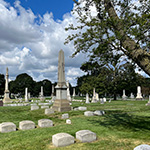 10.08.2026Join us at Graceland, a beautiful cemetery and certified arboretum in the north side neighborhood of Uptown, for an afternoon tour through history as we explore the final resting places of renowned Feinberg faculty and graduates. During this tour, you will learn about the founding and early years of the medical school, 19th century medical education, and early Chicago. We will visit the graves of 5 medical school founders and other notable people from Feinberg’s past.
 -
 10.08.2026Developed jointly by the Office for Research, Northwestern University Libraries, and Galter Health Sciences Library, the resources are intended to provide clearer, more coordinated support throughout the publication lifecycle—from selecting a journal and budgeting for publication costs to depositing manuscripts and monitoring compliance.
 -
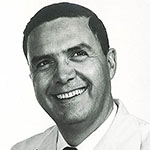 10.07.2026Luis Grana was a Peruvian-American surgeon who researched experimental surgical techniques at Lurie Children's Hospital.
 -
 09.15.2026The Galter Library is constantly striving to update our electronic resources and bring current tools to our patrons' desktops.
 -
 09.14.2026Whether you are beginning your studies or returning for another year, Galter Health Sciences Library is here to support learning, research, and collaboration.
 -
 09.04.2026A new Galter class explores the fundamentals of evidence synthesis and the diverse range of review methodologies available to researchers
 -
 08.27.2026Join the classes to delve into ethical questions you may already have and learn new ways to think about ethical authorship and the use of AI in research.
 -
 08.21.2026Whether you already have a preferred journal or are deciding where to publish, new federal public access requirements may affect your options.
 -
 08.20.2026The Galter Library is constantly striving to update our electronic resources and bring current tools to our patrons' desktops.
 -
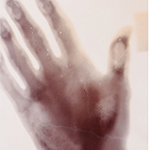 08.18.2026In honor of the 250th anniversary of the American Revolution, Galter Library highlights four breakthroughs that sparked their own revolutions and transformed medicine forever.
 -
 07.31.2026The Make Data Count initiative (MDC) is building open standardized metrics, infrastructure and community support to treat data as a first‑class scholarly output.
 -
 07.21.2026The Galter Library is constantly striving to update our electronic resources and bring current tools to our patrons' desktops.
 -
 06.12.2026The Galter Library is constantly striving to update our electronic resources and bring current tools to our patrons' desktops.
 -
06.05.2026The poster reports on ongoing research examining librarian influence on the quality of systematic reviews published by Feinberg School of Medicine authors.
-
 06.01.2026The Big Ten Academic Alliance (BTAA) Center for Library Programs has secured an Open Publishing Agreement with Wiley through December 31, 2027
 -
 05.18.2026Commentary: Onus is on researchers to use GenAI responsibly and ensure integrity, proper attribution
 -
05.15.2026A new Galter Library search interface offers a more streamlined and accessible search experience.
-
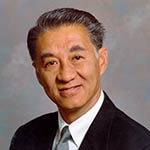 05.13.2026James S. T. Yao, MD, PhD, was a leading vascular surgeon who made an indelible impact on the field at Northwestern Medicine.
 -
05.05.2026Kristi Holmes, PhD, associate dean for knowledge management and strategy and director of the Galter Health Sciences Library and Learning Center, has been named the 2026 Medical Librarian of the Year by the Friends of the National Library of Medicine.
-
 05.04.2026A new digital archive developed by Northwestern scientists reveals how state-supported research funding agencies cooperate with the scientific community to decide to support scientific research projects and contribute to scientific innovation.
 -
 04.23.2026As the medical director of the Obstetrics and Gynecology Ultrasound Center, Sabbagha quickly became a leader in the field of ultrasound in high-risk obstetrics.
 -
04.10.2026The Galter Library is constantly striving to update our electronic resources and bring current tools to our patrons' desktops.
-
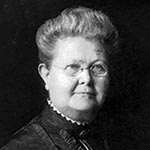 03.25.2026Lydia Anna Ballard, a pioneering physician and Northwestern‑affiliated alumna, broke barriers in 19th‑century medicine while advancing care for women.
 -
 03.21.2026Publishing research open access increases visibility, expands readership, and helps ensure scholarly work is accessible.
 -
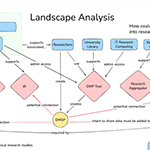 03.20.2026To promote open access to data, research infrastructure and reproducibility, data management and sharing plans (DMSPs) are being used at academic institutions.
 -
03.03.2026The Galter Library is constantly striving to update our electronic resources and bring current tools to our patrons' desktops.
-
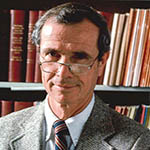 02.20.2026The papers of Ralph S. Paffenbarger, Jr., MD, DPH, a Feinberg alumnus and pioneering epidemiologist, are now fully processed and open to researchers.
 -
02.16.2026The Galter Library is constantly striving to update our electronic resources and bring current tools to our patrons' desktops.
-
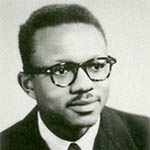 02.11.2026James P. Carter, MD, DPH, a 1957 graduate of the Northwestern University Medical School, became a leading and sought-after expert in medicine, especially nutrition.
 -
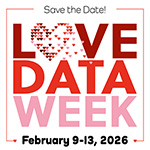 01.26.2026On the tenth anniversary of the internationally celebrated Love Data Week, institutions, organizations, researchers, students, and data enthusiasts are rising to the theme of “Where’s the Data?”